Validating Variable Length Lists In API Responses

Problem:
You are data driving an API with your SOAtest test and you have data validation requirements on an array of data the API returns. This can be problematic because depending on the request parameters, which you've externalized into a data source, you will receive varying length arrays coming back in the API response. Since traditional data sources are two-dimensional (columns and rows), there is a problem because you have to account for a third dimension. Instead of hitting your head against the wall wondering how to construct multiple data source sheets to manage this hierarchy, there is a nice application of XPath that makes this problem easier to overcome.
Solution:
Let's first take a look at how your data source can be constructed. This will also help to visualize the desired data validation described in the problem.
Here you can see I'm using a delimiting character '|' to separate the variable length accountIds I am expecting to see in my response depending on which data source row is being executed. Next, let's look at how the JSON Assertor in my SOAtest Test needs to be configured.
You can see the expected value is set to the Excel column that contains the delimiter we used. The magic that makes this validation possible is a customized XPath using the XPath function "string-join()".
Notice the string-join() function has two parameters. An XPath, and our delimiter String. You will want to start off with an XPath that locates all the accountIds in the response payload, and then use the string-join() function that will append your delimiting character in-between each node the XPath selects. If you want to learn more about the string-join() XPath function, see: https://www.w3schools.com/xml/xsl_functions.asp
And that's all it takes!
Comments
-
Update:
The above solution works nicely when you have manageable size lists you want to validate, especially given there is no coding required. What happens if your data validation requirements are more complex? When the variable length lists get long, it's going to become unmanageable to compress all that data into one cell in your spreadsheet. For that, we need a slightly more complex solution; don't worry it isn't any less elegant!Solution 2:
The previous approach was elegant because we kept our test design constrained to a single Excel data source. To better manage the hierarchical data, a second worksheet of data that is correlated with your main looping data source is necessary. Sticking with the previous example, here's what your second spreadsheet might look like:
Notice this worksheet has more rows than the previous one and we have "customerIds" as the key column linking this data to your main worksheet's data. So what we want to configure is a test that loops 3 times, once for each customerId from the main worksheet; then for each of those customerIds we want to find the matching accountIds to that customerId within the second worksheet and compare that list of accountIds with the list of accountIds returned in our JSON response from the service. Oh, and if you're wondering whether SQL Data Sources instead of Excel would be possible here, the answer is absolutely!
To begin, we must add that second worksheet as an Excel Data Source to the TST file. Make sure both Data Sources have the "Stop processing the spreadsheet at the first empty row" checkbox checked.

Next, we have to address the complexity of two iterable data sources to ensure the TST file is going to handle our desired looping strategy properly. To do this, open the root Test Suite editor in your TST file and go to Execution Options > Test Execution > Advanced Options. Make sure the "Multiple data source iteration" drop-down is set to "Flat (lockstep)".

Now that we have the data sources ready to do, let's go back to that JSON Assertor. One thing to pay close attention to is what Data Source is selected in your JSON Assertor's Data source drop-down on the top right of the editor. Make sure the JSON Assertor's data source is the one pointing to your second worksheet, while the REST Client it is attached to is pointing to the data source for the primary worksheet from the first example.

For the assertion in this case, you want to add a Custom Assertion. For the Element Selection, you're going to use the same XPath trick I covered in the previous solution. We want the input of our Groovy script to contain the delimited list of data we're interested in asserting on.

For everyone's convenience I decided to share this script to hopefully make your lives easier in constructing this kind of complex assertion. See the attached CompareASC.txt file to this post and use it in your Custom Assertion editor within the JSON Assertor. You can edit the String parameters at the top of the script to reflect the data source names and column names relevant in your test. To add additional debugging while playing with this script, uncomment the lines that start with "Application.showMessage". These print statements will appear in the SOAtest Console when you run the test. Last but not least, don't forget to check the "Use data source" checkbox as seen in this screenshot:

And with that, you're ready to run the test and start editing the expected data in your data sources to watch it fail when there isn't a match.
1 -
Since sort order is not guaranteed in JSON arrays, unless programmatically accounted for in the API resposne, will this account for possible order variations between runs?
ie first run returns array results as A, B, C, D but the second or nth run returns the data as B, D, C, A.
1 -
Great question @goofy78270 ! Yes, my script does account for variable orderings between runs. If you look at lines 40 and 41 at the beginning of the else block, you'll see that it sorts both the responseList and expectedList before checking for equality.
0 -
I think the sort is great, but if there are mutliple values in the array objects, such as id, fname, and lname, and the sort is simply on the field in question (lname), the sort could be off. I have found that the sort should be based on a unique field within the array objects to ensure they are sorted the same and not just based on the evaluated value.
I have ran into this issue multiple times, specifically when comparing responses between two different calls or services.
0 -
Hi @goofy78270 , that is correct. In the example I described in this post, the Custom Assertion is acting on a common, or unique, field within the array of same-objects in the JSON Response. In other words, it is sorting all the "id" fields and then comparing that with a sorted list of expected "id" fields. If you have multiple fields you want to assert on in this manner, then one approach would be to create a separate Custom Assertion for each of those fields.
0 -
With the SOAtest 2025.3 release, there is now a solution to this use case that does not require scripting. This is thanks to the new JSON/XML List Processor Tools. While their primary utility is with service virtualization, this particular use case with API testing benefits from these tools.
Here is the new test construction that we will be reviewing.
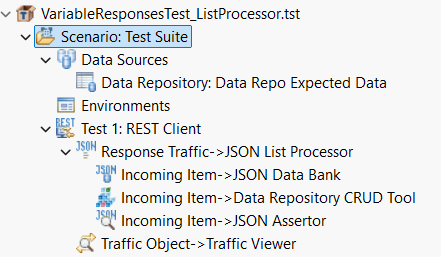
One key difference in the new solution is to leverage the Data Repository as a Data Source instead of multiple Excel spreadsheets that have related data. The Data Repository is designed to support hierarchical data and happens to be a good choice when the expected values you want to validate against service responses are variable in length and hierarchical. A similar solution that avoids scripting is possible by using a relational database instead of Data Repository to store the test data, however, this post will only be covering the Data Repository method.
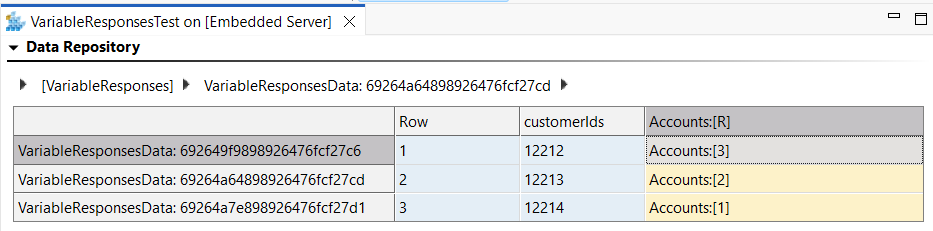
First, let's take a look at how the Data Repository for the expected data is defined.
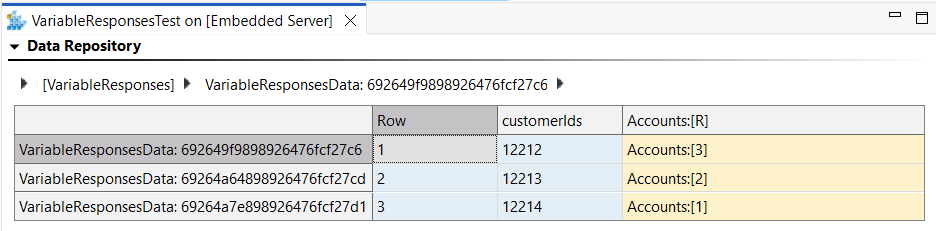
There is a key column for customerIds, this will be used to loop the REST Client where we will have a variable length list in the response depending on the customerId that is used.
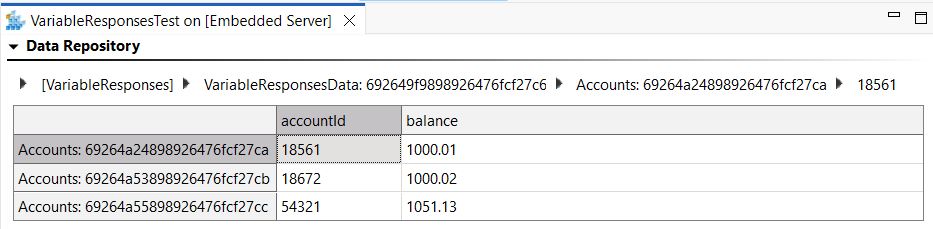
Next, we have a data column that contains a record list. For customerId 12212, there are 3 Accounts associated to that customer. That hierarchy is well represented in Data Repository and if we drill down into the Accounts record list for customerId 12212, we see:
Looking at the Accounts associated with customerIds 12213 and 12214, we see:
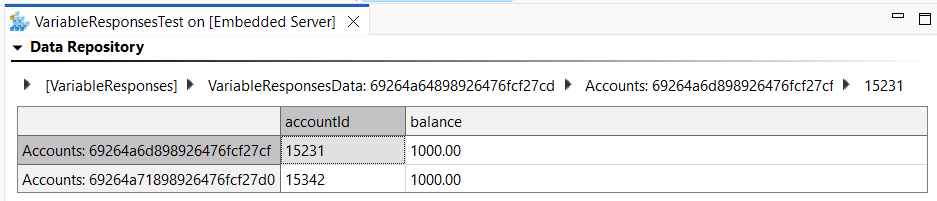

This is the same data that required two spreadsheets in the earlier posts, now represented hierarchically in a single data source.
Next, let's see the response traffic that we want the JSON List Processor to be acting on. In this case, we're seeing the response for customerId 12212:
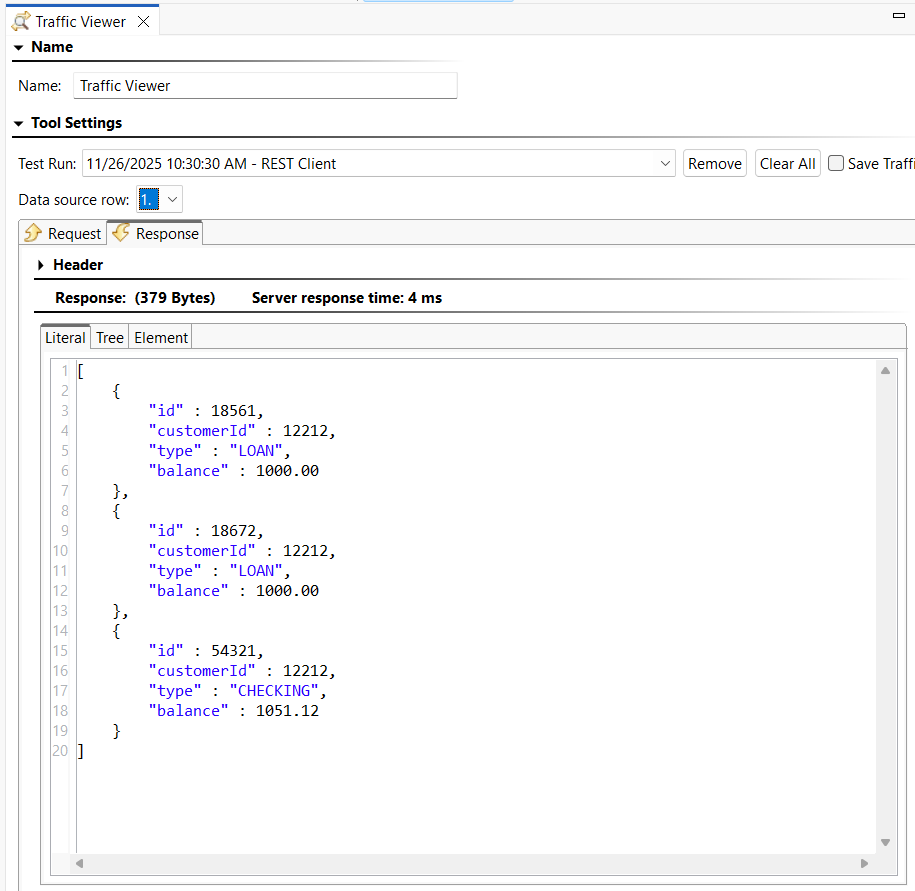
The way we'll be using the JSON List Processor is to have it extract list items, and then chaining tools to it's "Incoming Item" output so that those chained tools loop for each list item that was present in the list. You can think of this like an inner loop that is taking place within the data source iteration that's happening as an outer loop where a different response is retrieved for each customerId the REST Client is sending to the service.
The JSON List Processor Tool is configured as follows:
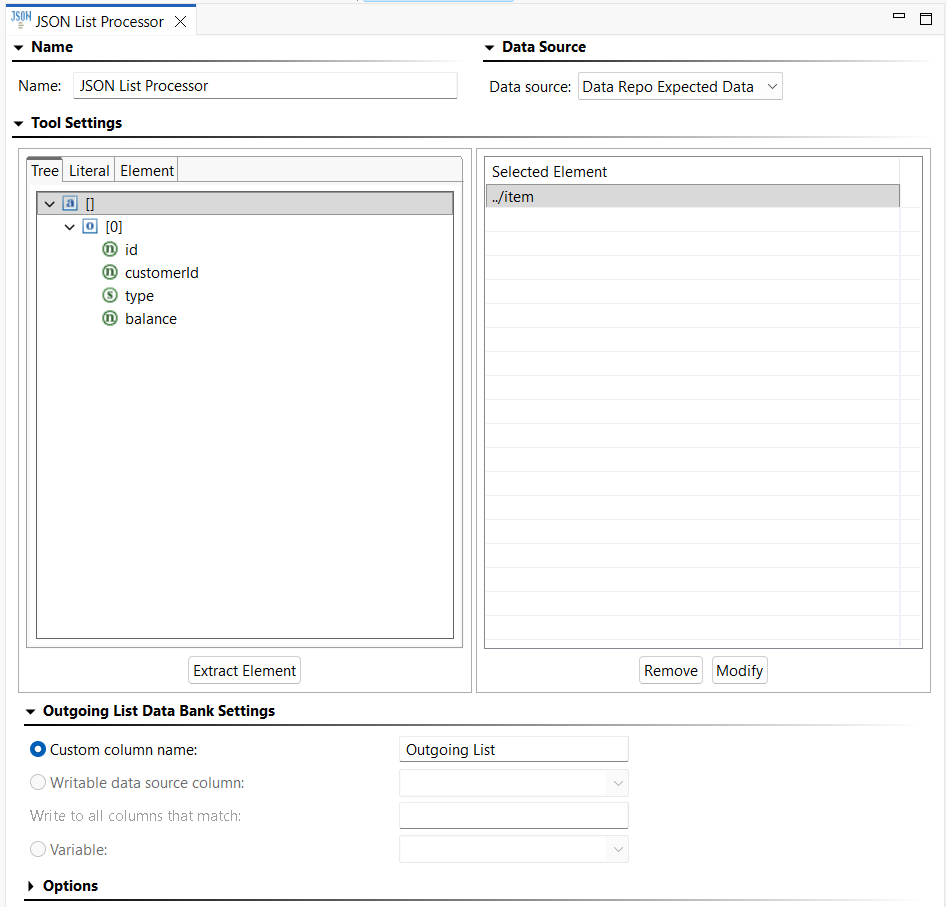
Using the Tree view, we can extract each item object in the list by double clicking the object node [0] and the appropriate XPath gets build for the Selected Element extraction.
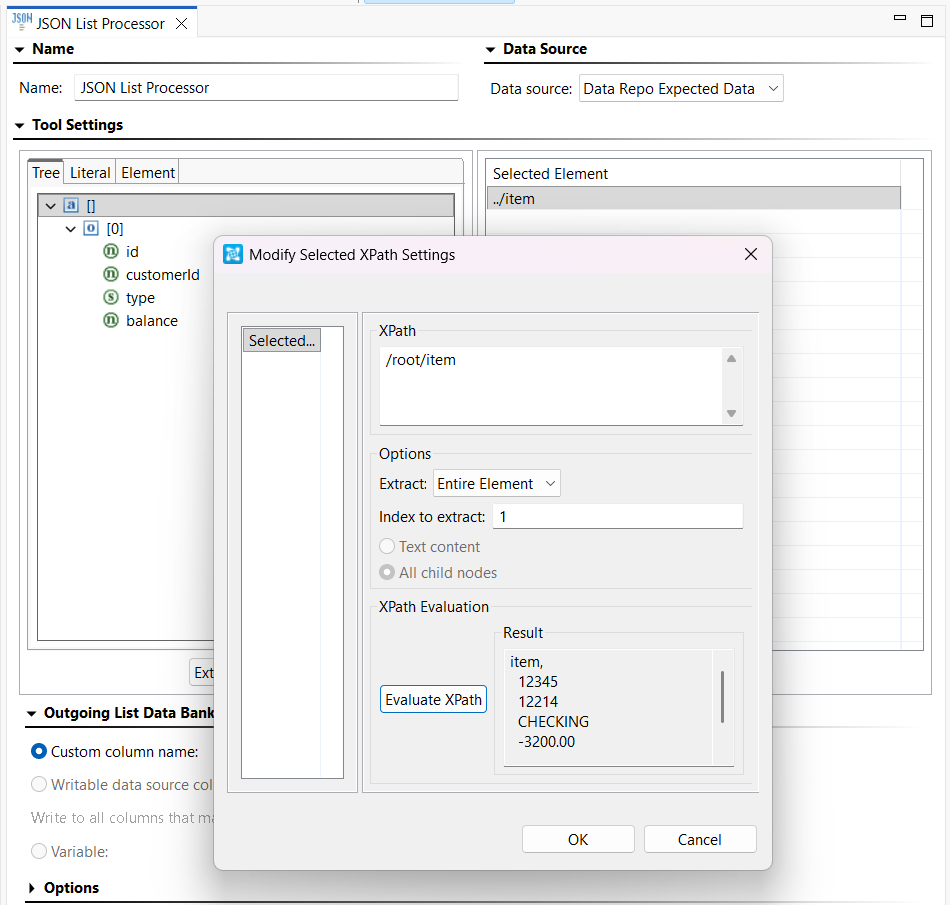
Notice that the tools chained to the JSON List Processor are all chained to its "Incoming Item" output.
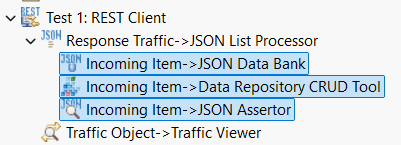
This means that for each item in the variable length list that came back in the response, these tools will get run. So let's see what each tool is doing in order.
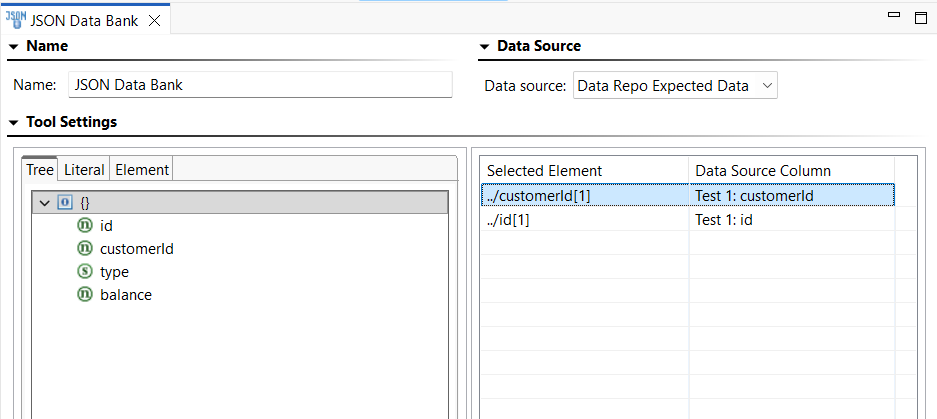
First, we have the JSON Data Bank. This is extracting the customerId and accountId values from the list item and storing them in variables to be referenced in the subsequent tools.
Next, we have the Data Repository CRUD Tool. This is how we are extracting the expectedBalance from the hierarchical data that's inside the Data Repository Data Source.
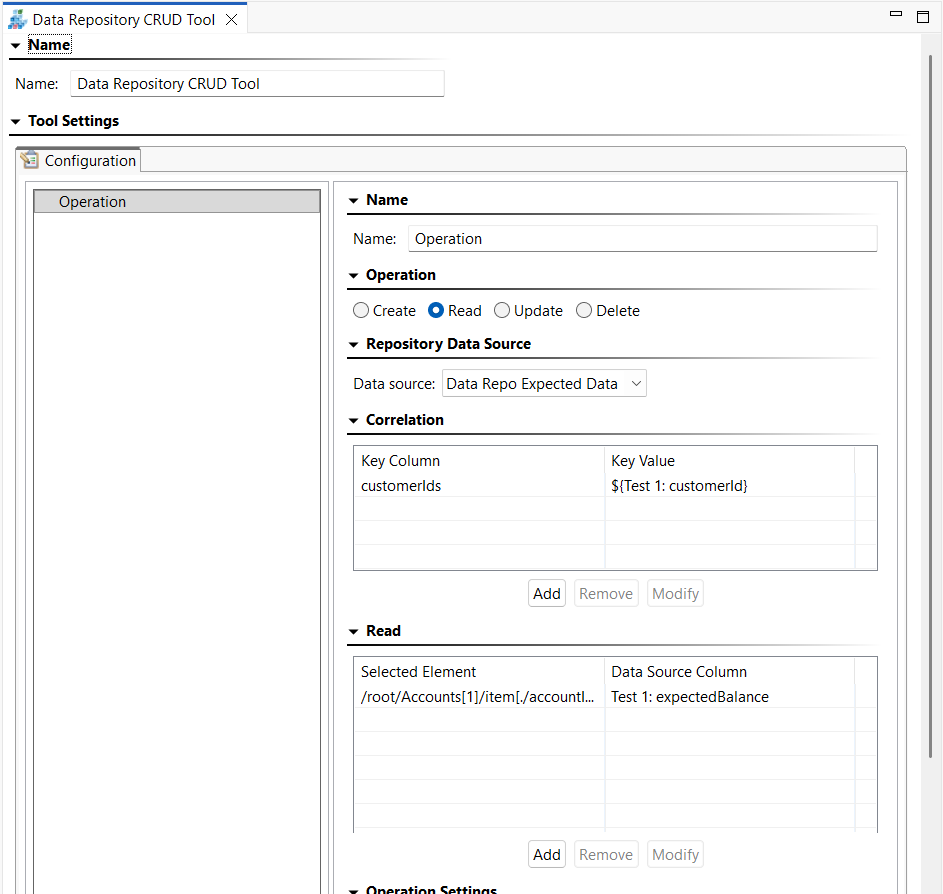
- The Data Repostiory CRUD Tool has been configured to perform a Read operation.
- Next, the customerId from the response list item is used to correlate with the Data Repository key column so that it knows which row to read from.
- Last, the Read operation is pulling out the expectedBalance from that Record List in the Data Repository. Each row in the Data Repository can have multiple accounts, so a smart selection is necessary to choose the correct row based on the accountId of the response list item that we're currently indexed on.
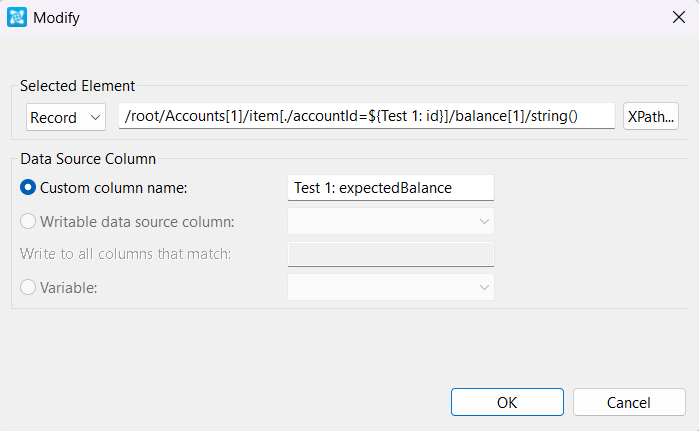
This is why the JSON Data Bank is extracting the accountId, so it can be used in the XPath of the CRUD Tool's Read operation to choose the right account when extracting the expectedBalance.
Finally, we have the JSON Assertor. It is going to compare the balance of the account list item against the expected balance of the account defined in the Data Repository Data Source that we've extracted with the previous CRUD Tool's Read operation.
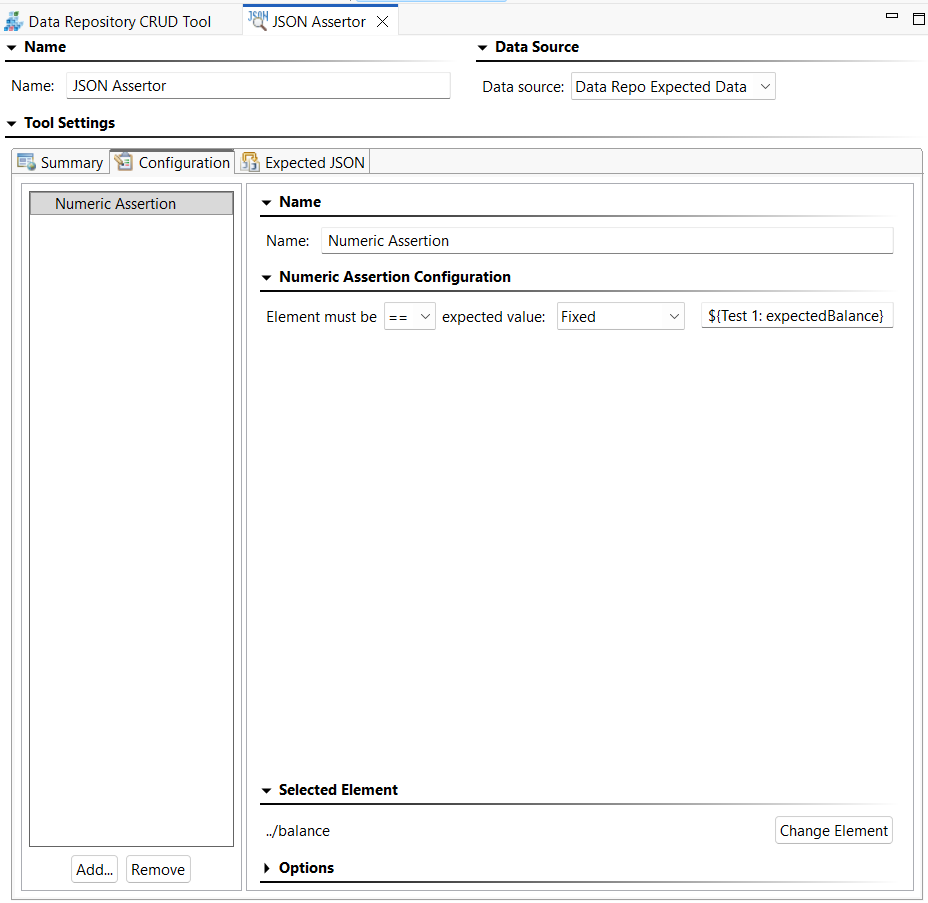
When you put all this together, we are now set up to start validating variable length lists in API responses without having written a single line of code.
With 3 rows of customerIds (outer loop) and a total of 6 Accounts among them (inner loop)
We can see that SOAtest's JSON Assertor is catching all of the incorrect balances in the variable length lists returned by each customerId.
 0
0